
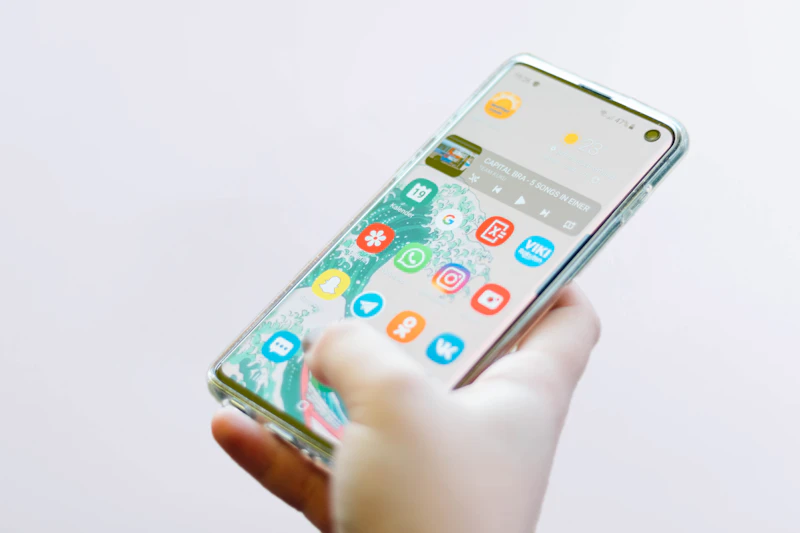
Introduction to Vivo X500 Fingerprint Scanner Issues
The Vivo X500 is celebrated for its sleek design, vibrant display, and cutting-edge in-display fingerprint scanner. However, like any advanced biometric component, users may occasionally encounter issues where the fingerprint sensor fails to register touches, becomes frustratingly slow, or stops unlocking the device altogether. This problem can stem from minor software glitches, accumulated system cache corruption, screen protector interference, or physical hardware damage to the under-display optical or ultrasonic sensor module. In this comprehensive repair and troubleshooting guide brought to you by the mobile hardware experts, we will walk you through step-by-step software solutions and professional hardware repair techniques to get your Vivo X500 biometric security working flawlessly again.
Step-by-Step Software Fixes
Before opening your device or attempting hardware replacements, always rule out software-related conflicts. Follow these structured troubleshooting steps:
- Perform a Hard Restart: Minor system bugs often freeze biometric hardware services. Press and hold the Power button and Volume Up button simultaneously until the Vivo logo appears to force a clean system reboot.
- Clean and Re-add Fingerprints: Over time, sweat, oil, and micro-scratches can degrade recognition accuracy. Go to Settings > Security & Privacy > Fingerprint, delete your existing saved fingerprints, thoroughly clean your screen, and re-register your primary fingers from multiple angles.
- Boot into Safe Mode: Third-party screen lock applications, custom launchers, or overlay apps can conflict with the Vivo X500 fingerprint API. Hold the power button, tap and hold the Power Off prompt, and select "Safe Mode." If the scanner works in Safe Mode, uninstall recently downloaded third-party apps.
- Clear System Cache Partition: Corrupted cache data can disrupt background hardware processes. Power off your phone, boot into Recovery Mode using the Volume Up and Power button combination, and select "Clear Cache."
- Reset All Settings: If the biometric service package remains unresponsive, navigate to System Management > Backup & Reset > Reset All Settings. This will not delete your personal data, but it will restore default system configurations.
- Update the Operating System: Ensure your Vivo X500 is running the latest FunTouch OS version. Manufacturers frequently push firmware patches that specifically enhance in-display fingerprint calibration and speed.
- Always power off the device completely before disconnecting any internal components.
- Use non-conductive plastic pry tools to avoid puncturing the lithium-ion battery or shorting out motherboard capacitors.
- Wear anti-static wrist straps (ESD protection) to safeguard sensitive microchips and biometric sensors from static discharge.
- Work in a clean, dust-free environment to prevent debris from settling between the display glass and the under-display fingerprint sensor.
Hardware Checks & Repair Advice
If software troubleshooting fails to resolve the unresponsiveness, the issue is likely rooted in physical hardware. For professional technicians and advanced DIYers, follow these hardware inspection and repair protocols:
Screen Protector and Display Inspection
The Vivo X500 relies heavily on an optical or ultrasonic sensor positioned directly beneath the AMOLED panel. Thick tempered glass screen protectors, privacy filters, or low-quality replacements frequently block light transmission or distort the fingerprint image captured by the sensor. Remove any aftermarket screen protectors and test the scanner on bare glass. Additionally, inspect the display for internal cracks directly over the designated scanner zone.
Flex Cable and Connector Verification
Drops and impacts can loosen internal connections. Carefully disassemble the Vivo X500 back cover and disconnect the battery to prevent short circuits. Inspect the main display flex cable and the sub-board connector responsible for transmitting biometric data to the motherboard. Reseat the ribbon cable, ensuring no dust or liquid residue is trapped inside the connector pins.
Component Cleaning and Replacement Guidelines
If the sensor glass on the inner side of the AMOLED panel is smudged with adhesive or dust, gently clean it using 99% isopropyl alcohol and a lint-free optical swab. If the fingerprint module itself is physically damaged, faulty, or decoupled from the OLED display assembly, technicians must replace either the sensor module or execute a full screen assembly replacement, depending on how the manufacturer integrated the specific hardware generation. Always recalibrate the fingerprint sensor using official Vivo factory diagnostic software post-replacement.
Safety Precautions
Working on modern smartphones requires strict adherence to safety guidelines to prevent permanent device damage or personal injury:
For more mobile repair tutorials and diagnostic guides, visit phonesdns.com.
Frequently Asked Questions
Why is my Vivo X500 fingerprint scanner completely missing from the settings menu?
If the fingerprint option has disappeared entirely from your settings, it usually indicates that the hardware sensor is not being detected by the kernel at boot. This is commonly caused by a disconnected flex cable, water damage corrosion on the motherboard, or a failed sensor IC following a drop.
Can I replace the Vivo X500 fingerprint sensor myself without software calibration?
While physical replacement can be done with precision tools, modern smartphones feature strict cryptographic pairing between the motherboard and biometric hardware. Replacing the scanner often requires running an official factory calibration tool to pair the new sensor with the security enclave; otherwise, the scanner may remain completely unresponsive.
Does a cracked screen protector affect the Vivo X500 fingerprint reader?
Yes. Cracks, air bubbles, or deep scratches directly over the optical fingerprint sensor area scatter the light needed to capture a clear image of your fingerprint, leading to constant recognition failures.